
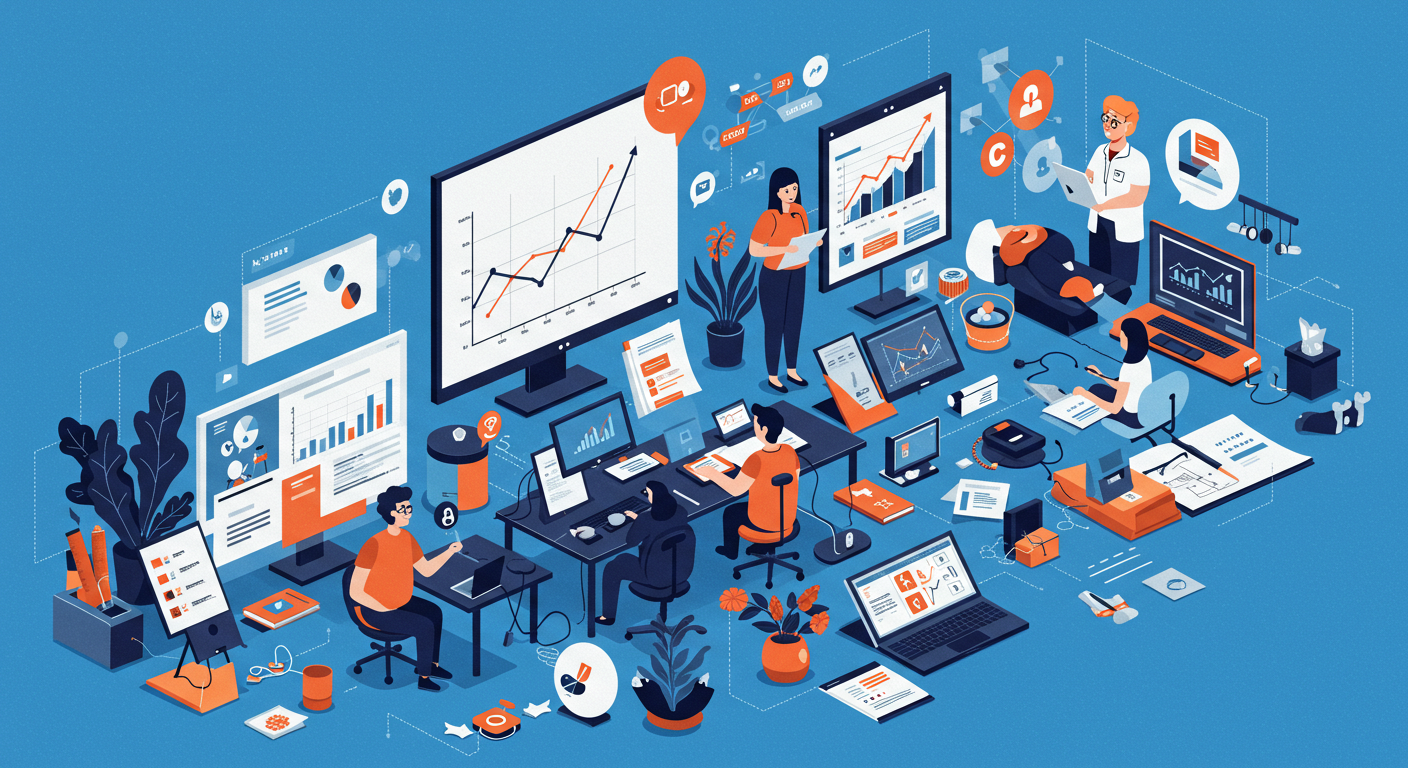
Bye-Bye Boring! The PM's Guide to 12 Presentations So Good They’ll Forget To Look at their phones
As a project manager, your ability to communicate complex information clearly and persuasively is paramount. Yet, despite presentations being a critical communication tool, so many are still dry, text-heavy, and frankly, boring. 😩 Is it any wonder that people are multitasking, checking email, or reading Instagram during these meetings?
Your presentations are more than just slides; they are critical tools for securing approvals, managing expectations, and driving project alignment. With these 12 essential tips, you can re-engage your people and get their attention back to where it needs to be—on your presentation.
Here are my 12 tips for engaging project presentations
1. Leverage AI for Strategic & Tactical Wins (The Ultimate Outline Hack)
Use AI tools (like ChatGPT, Gemini, or Bing Chat) to elevate both your preparation and content:
Strategic: Use AI to generate a persuasive presentation outline tailored to a specific audience (e.g., an executive board). Have it distill a lengthy project report into 3-5 key takeaways, providing your high-level narrative.
Tactical: Use AI features to suggest slide layouts, generate professional image prompts for visual assets, and craft detailed speaker notes and figures, dramatically reducing your prep time.
2. Adopt the Canva-to-PowerPoint Workflow
Don't let design limitations hold you back. Start your slide creation in Canva to leverage its expansive, modern templates, superior stock library, and intuitive design features. Once your design and graphics are finalised, use Canva's export function to download as a Microsoft PowerPoint (PPTX) file. This hybrid approach lets you capitalise on Canva's great design while utilising PowerPoint's collaborative features and corporate standard compliance.
3. Define Your Persuasive Purpose
Before you click "New Slide," determine the single, overarching goal of the presentation. Is it to Get Approval? To Communicate Risk? To Secure Resources? Every piece of content, every chart, and every word should serve this one persuasive purpose. If a slide doesn't contribute, delete it.
4. Master the 3-Second Rule
Every slide should convey its core message in three seconds or less. To achieve this, implement strong master slides and themes before adding content. Consistent design, strategic use of white space, and clear visual hierarchy ensure that your audience instantly grasps the main idea and focus.
5. Prioritise Company and Brand Templates
While external templates offer variety, always choose your approved company or brand-specific template first. Using approved themes and layouts across all project communications (kick-offs, status reports, final reviews) builds visual continuity, reduces stakeholder friction, and ensures consistency across the entire project life cycle.
6. Harmonise Colours with the Eyedropper Tool
Stop guessing your colour palette. Use PowerPoint's underrated Eyedropper tool to sample colours directly from your company logo, a specific chart, or a high-quality photo. This instantly creates perfect colour harmony, giving your slides a polished, professional, and on-brand appearance without needing extensive design training.
7. Level Up with High-Quality Multimedia
Ditch the bullet points and low-resolution graphics. Replace text-heavy slides with powerful visuals. Use high-quality, high-resolution images, well-produced short videos, and animated GIFs to make complex concepts instantly understandable. Use approved AI tools to generate engaging and related illustrations and images to assist with engagement.
8. Annotate for Live Audience Engagement
During your presentation, use PowerPoint’s built-in annotation tools (pen, highlighter) to draw attention to critical data points, circle next steps, or emphasise risk areas while you speak. This dynamic interaction helps maintain focus and ensures that the audience's eyes are always fixed on the one piece of information you are discussing.
9. Use 'Presenter View' for Confidence and Control
This is the non-negotiable hack for confident delivery. Presenter View allows you to see your notes, the next slide's preview, and your timing on one screen, while the audience only sees the current slide. By practising with this view, you can speak naturally, maintain eye contact, and avoid looking down at notes or reading directly from the slide.
10. Stop Reading Slides from Memory
Your slides are the visual backdrop; you are the subject-matter expert. Never read your content word-for-word. If you know your content well (using Presenter View helps), you can engage with the audience, speak conversationally, and use the slides as cue cards—not a script.
11. Collaborate Seamlessly with Teams Integration
If your organisation uses Microsoft Teams, leverage its integration with PowerPoint. You can present directly within a Teams meeting window, ensuring all attendees are focused and on the same version. This feature also simplifies collaborative editing and sharing among your core project team.
12. Finish with a Clear, Actionable CTA
Never end with "Any questions?" Your last slide should be your Call-to-Action (CTA). Clearly state what you need from the audience: "Approve Phase 2 Budget by Friday," "Provide Feedback on Risk Log by EOD," or "Schedule a Follow-Up Meeting." Make it impossible for stakeholders to walk away without knowing their next move.
Wrap up
So there you have it—12 epic ways to kill the monotony and make your project updates shine! We armed you with the secrets to presentation success, covering everything from using AI to cheat on your outlines and the genius Canva-to-PowerPoint workflow, right through to mastering the stage with Presenter View. Stop putting people to sleep and start getting that crucial stakeholder sign-off!
Ready to take the next step in using tech to deliver better project outcomes?
Download my FREE guide on How to Use M365 to Effectively Plan Your Projects for a step-by-step approach to technology-driven organisation.
And, if you're looking for personalised help, check out my available Power Hours to start using technology better today!

on social
www.easeintotechnology.com - All Rights Reserved - Terms & Conditions - Privacy-Digital Products Terms & Conditions